
Tech for Good Meetup - September 2013
Sep 13th
On Monday I attended the first Tech for Good Meetup, a showcase for startups aiming to solve social and environmental problems. The format was a series of lightening talks, an introduction from the sponsors followed by short presentations from five startups. This post comtains my notes and links.

Bethnal Green Ventures - Lily
The organiser/sponsor, Bethnal Green Ventures is a tech accelerator (like Y Combinator) for ?social good' startups. The idea is they give seed capital to a number of startups, along with some office space and a whole load of support and mentoring. Follow them at
@bg_ventures.
Echo - Matt
Echo stands for "EConomy of HOurs", the site is a broker for trading an hour of your work (an 'echo') for an hour of work from other people. They hope to create "a nationwide currency of echos". All hours are created equal, which I'm sure simplifies things but doesn't seem to me to offer much incentive to offer hours of work which require a lot of training (eg. legal or medical advice). Follow them at @economyofhours.
Winnow Solutions - Marc
1/3 of food is wasted globally per annum, this is equivalent to 300 billion dollars. Kitchens are very inefficient and waste 20% of food used. Winnow have developed a food waste 'smart meter' which allows easy logging and classification of food waste, leading to metrics and better awareness. The device saved £12k pa at its first trial site.
Follow them at @WinnowSolutions.
OpenSensors.io - Yodit
An aggregator for the internet of things, OpenSensors allows you to collect data from any device and easily perform data mashups combining both open and private data.
Follow them at @OpenSensorsIO.
SpeakSet - Ewan
The problem SpeakSet has set out to solve is that 1 million older people haven't spoken to friends or family in a month. This is not just a problem of lonliness, it is also a problem for healthcare delivery where there has been no innovation since Florence Nightingale. Average life expectancy goes up by 5 hours every day so this problem is only going to get worse. SpeakSet packages up a Skype style video calling service into a remote controlled TV interface. The grandchildren can use their existing smartphones to receive calls. Call your Grandparents tonight!
Follow them at @speaksetUK.
Flip Yourself - Bruno
A visual LinkedIn for kids. Young people don't know how to write CVs or evidence their achievements, they're not good at selling themselves. Flip Yourself allows them to collect evidence easily, using tools familiar to them from social media.
Follow them at @flipurself.
Upgrading a Geeksphone Keon to Firefox OS 1.1
Aug 11th
Note: This is not a technical post, it's more in the way of a story. If you're looking for step by step ROM flashing instructions this is not the post you are looking for, please refer to the Geeksphone docs.
A few months ago I bought a Geeksphone Keon in order to play around with Firefox OS. My brother did an unboxing video and, not too surprisingly, the comments from his audience of (mostly) high end smartphone users weren't too positive. This didn't bother me overly, I knew what I was getting: a developer phone with a beta operating system, what excited me was the idea of an open phone platform for which the web technologies I am well familiar with were the primary app development paradigm.
The thing that did disappoint me about the phone was that GPS seemed to be non-functional. I tried a few things like leaving it by a window or visiting wide open spaces, waited for some OS upgrades and tried them again, but however long I left it the GPS never got a lock; instead it just flashed away in the notification bar and drained my battery. Since pretty much all the useful apps I could think of depended on GPS this failure quickly drained my enthusiasm both for the device and any potential app development adventures so I put the device aside for several weeks.
During this time Google has set about removing the most useful feature of Android and the top device manufacturers seem to be hell bent on only providing you with top end processing power in phones that are too big to be comfortably operated with one hand. Now that they've achieved market dominance Google seem to be locking down the bits that made Android interesting to me as an open alternative to iOS in the first place. So I've started to consider other options for my next 'proper' phone. In this frame of mind I came across Geeksphone's new device, the Peak+ - doesn't seem to be significantly less powerful than the HTC One Mini, lets you plug in a MicroSD card and about half the price. Plus I'd get the warm, glowy feeling from owning a 'properly' open device. But of course none of that would be any use to me is something as basic as GPS didn't work, which leads directly to today's adventures in ROM flashing.
Geeksphone provide an easy download page for all their ROMS, you can choose from stable (1.0), beta (1.1) and nightly (1.2):

Download your chosen image then the process is quite straightforward:
- Unzip and
cdinto the directory - Connect your Keon by USB and enable remote debugging (Settings > Device Information > More Information > Developer > Remote debugging)
- Issue the command:
sudo ./flash.sh - Answer the question about keeping user data
- Wait until the phone reboots; you're done
Simple. So, of course, the first time I tried it the phone wouldn't reboot. I saw the startup screen but not the Firefox OS splash screen. I found a blog post with a section “Ok, I bricked my phone” and followed the steps, unfortunately the same result. In desperation I tried downloading the image again and noticed I'd been trying to install the 9th August build when the 10th August build was available. Downloaded the new build, flashed and voilà I once again had a working phone.
The first happy news:
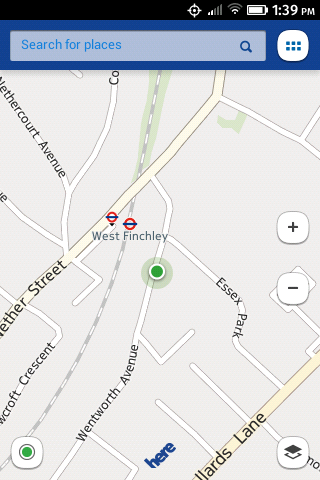
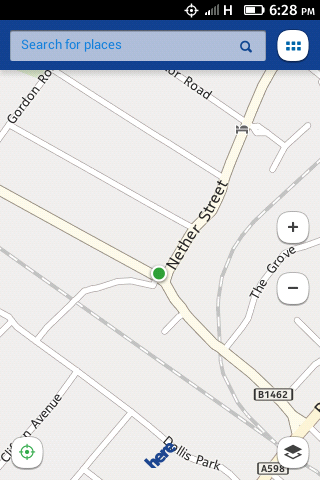
GPS works! The second thing I noticed, as I was taking the screenshots, was that it's now optional to have an SD card. Firefox OS 1.0 wouldn't even let me take pictures until I put a card in, now stuff is saved to the device by default:

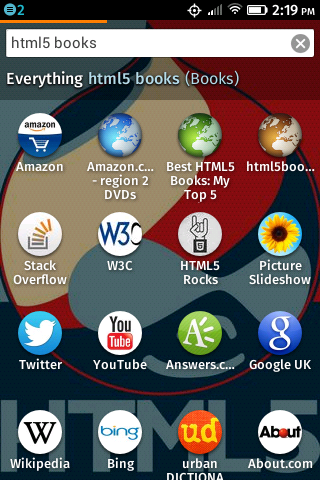
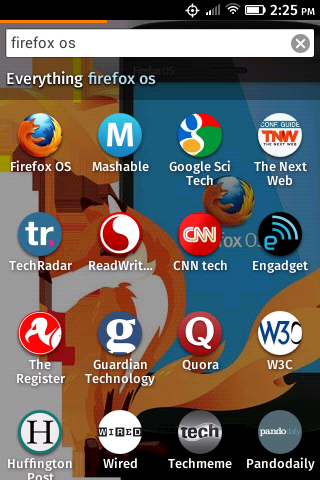
The other major change from Firefox OS 1.0 is the home screen. Previously there was a basically empty home screen and, one swipe to the left, an 'apps search' screen with a bunch of icons on it (though not for apps, just links to websites). Now there is just the home screen with a search box, typing stuff into it brings up the icons like before along with a relevant background image:

Overall I'm very satisfied. Upgrading is easy, the upgrade actually fixes stuff as well as improving performance. I'm going to seriously consider getting a Peak+.
Update: Features for Font Fanatics
Jun 12th
Some time ago I wrote a blog post Firefox 4.0 Features for Font Fanatics. Since that time the spec has evolved and support has arrived in Chrome and IE10 so I thought it was worth an update.
Here's the example CSS rule from the original post:
.example {
    font-feature-settings: "dlig=1,tnum=1,ss01=1";
}
This is what the syntax now looks like:
.example {
    font-feature-settings: "dlig" 1, "tnum" 1, "ss01" 1;
}
As you can see the change is subtle. For practical support you'll need to use vendor prefixes, of course:
.example {
    -moz-font-feature-settings: "dlig" 1, "tnum" 1, "ss01" 1;
    -webkit-font-feature-settings: "dlig" 1, "tnum" 1, "ss01" 1;
    -ms-font-feature-settings: "dlig" 1, "tnum" 1, "ss01" 1;
}
I've updated my examples to use the new syntax:
OpenTech 2013
May 23rd
It's been a while since I've written a proper blog post but now that my 'professional' writing obligations are mostly out of the way I've been meaning to return to my amateur ramblings. As I attended OpenTech 2013 at the weekend I thought this was a great opportunity to get back into the swing of things. I've been to a few of these events now and they're always well organised and thought provoking, this year was no exception. Each of the six timetable slots through the day had three rooms with sessions and each of those sessions had 2 or (usually) 3 talks. So obviously I was only able to be in one of those rooms at once and see only about one third of the speakers, but I've assembled all those speakers into my OpenTech 2013 twitter list and in this post I'll give my potted impressions of each talk.
Session 1 (Stream C)
- Farmification - the joystick factory - Lisa Ma - When everyone is using touchscreen devices, what happens to all the people working in the mouse factories? Lisa has been creating programmes to encourage workers to do part time farming work so that they have something to fall back on when the hard times come. An interesting alternative to 20% time.
- House on Github - Francis Irving - Francis is recording issues with his house on GitHub, he thinks that in the same way that he put his CV online in 1996 and now everyone's doing it, by 2023 everyone will be doing this too. The serious point of the talk was that to effect change in the behaviour of the general population, to cross the chasm, requires geeks to hack the market, not just the tech.
- The Constitutional Excerpts Project - James Melton - a project to create semantically indexed and fully searchable database of the world's constitutions, because generally people that are writing constitutions are doing it for the first and only time in their lives and could do with some help.
Session 2 (Stream B)
- The Children's Republic of Shoreditch - Lucy Macnab - a fascinating project run from the back of a fascinating shop, I urge you to check out the video.
- Writers Centre Norwich - Chris Gribble - Chris wants 'creative people' and 'technical people' to get together and create fictional works featuring and about technology while still being 'literature'. However it was clear he'd never read any SciFi, which I think set him apart from most of his audience, and when directly asked why he didn't think 'technical people' couldn't also be 'creative people' his answer, even though he denied he thought that, described them as two separate communities who needed to be somehow united.
- School of Data - Tony Hirst - a project to educate civil society organizations, journalists and citizens in the skills needed to analyse publically available data and 'find the story' through a combination of outreach, training and crowd sourcing.
Session 3 (Stream B)

- Unix FPGA - Beyond just Finance - Graeme Burnett - using Field-programmable gate arrays in high speed trading platforms where 80GbE throughput will soon be a common requirement.
- Raspberry Pi - Rob Bishop - An interesting talk on problems and possibilities from one of the Pi developers. Although four fifths of the audience owned a Pi only one fifth had actually built something with one.
Session 4 (Stream A)
- Tiny Data - Richard Pope - A number of practical projects for easy data visualization, including the bicycle barometer.
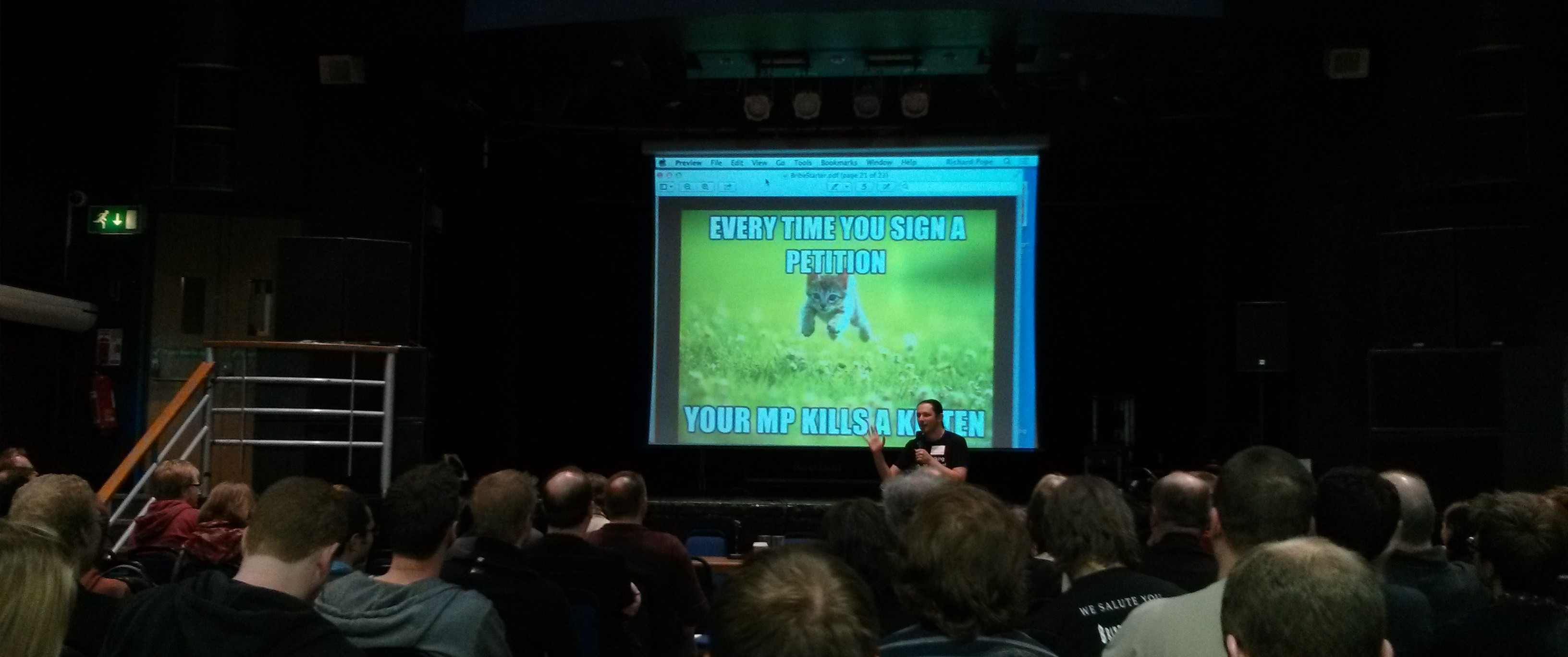
- Bribing MPs with Crowdsourcing *Satire* (probably) - Terence Eden - definitely the most amusing talk of the day, but inspired some discussion on the serious issue of how the general public can overcome the concentrated buying power of rich people with special interests.
- The Domain Logic of Direct Action - Stephen Reid - Beautiful Trouble is a book and web toolbox that puts the accumulated wisdom of decades of creative protest into the hands of the next generation of change-makers.
Session 5 (Stream B)
- Big Data for Real People - Chris Osborne - The 4 rules of data visualization are that data should be:
- Personalized - relevant to the person viewing the data
- Accessible - don't set a science exam because, unlike you, most people dislike science (and graphs)
- Actionable - data is no use if you can't do anything as the result of seeing it
- Instinctive - recognizes human behaviour and the environment the decision is being made in
- Doing Good With (open) Data - Duncan Ross - As we enter the age of big data what will the legal and moral framework for using that data look like? The major pieces of legislation which govern big data are old (1995 for the EU Data Protection Directive, 1791 for the US Bill of Rights) and cannot hope to keep pace with the speed of change of the Internet. How will society ensure big business uses big data in a moral way when we're not event sure what that morality will be? DataKind UK brings together leading data scientists with high impact social organizations through a comprehensive, collaborative approach that leads to shared insights, greater understanding, and positive action through data in the service of humanity.
- What do Open Sensor Networks mean for citizen science? - Dan McQuillan - There is so much data available nowadays that statistical methods are often used in place of traditional knowledge gathering, for instance drone strike targets are governed by a data mining algorithm rather than on the ground intelligence. But this huge pool of data can be used for good if we can stimulate people with technical and data mining skills to consider social issues.
Session 6 (Stream A)
- The STEMettes - Stemettes - Providing events, support and strong role models for women in Science, Technology, Engineering and Maths. Role models are important: hack days delivered by women for women and girls produce better engagement than those delivered by men, similarly recruitment events delivered by a team including female members produce a far higher proportion of female applicants. Also women tend to be motivated by the outcomes rather than the opportunity to simply experiment.
- FOSSbox - Paula Graham - it is understood that diverse teams produce better solutions, but only 3% of FLOSS contributions are from women. Fossbox actively support women contributing to open source projects.
- Practical Diversity - Meri Williams - an excellent presentation with practical advice for fostering a more diverse work environment.
HTML5 in Action is the Manning Deal of the Day!
Apr 9th
Half off my book HTML5 in Action. Use code dotd0409au at manning.com.
If you want to ask questions about the book, or anything to do with HTML5, Java Ranch have a companion promotion this week.

Links for June 2011
Jun 27th
-
Clip your hidden content for better accessibility | Yahoo! Accessibility Library - How you hide your extra content for screen readers can make a big difference to accessibility, this post gives a run down of all the techniques and examines clipping in detail.
-
Google Testing Blog: Introducing DOM Snitch, our passive in-the-browser reconnaissance tool - A Chrome extension that enables developers and testers to identify insecure practices commonly found in client-side code.
-
How To Run A News Site And Newspaper Using WordPress And Google Docs - 10,000 Words - An interesting approach to building a newspaper, using free tools to generate and publish the content online, then feeding that same content into InDesign for the print edition.
-
Microformats 2 and RDFa Collaboration | The Beautiful, Tormented Machine - Finding common ground in the quest to express semantic data in web pages.
-
The 11 JavaScript Mistakes you’re Making | Nettuts+ - Well written introduction to several things you really ought to know before doing any serious JavaScript.
-
Useful :nth-child Recipes | CSS-Tricks - Several good examples with clear illustrations.
-
publicdata.eu: Data, Apps and 800,000 Triples at lod2.okfn.org - The Open Knowledge Foundation announce the launch of a European-wide registry of semantic web data.
-
pdf.js: Rendering PDF with HTML5 and JavaScript | Andreas Gal - A JavaScript library for rendering PDFs into a canvas element without any server side support, future plans include rendering to SVG.
-
Cascading Style Sheets Standard Boasts Unprecedented Interoperability - After just a single, short decade of development the CSS2.1 standard is now a W3C Recommendation.
-
Where are my rounded corners? « Boagworld - "Sometimes we see confusion among our clients when they see their new site in their browser and it looks different to the design they signed off. In this fact-sheet we explain why accepting these differences has many benefits and doing so outweighs the limited drawbacks."
Drag and Drop and Delegate
Jun 3rd
HTML5 Drag and Drop has been popular topic recently on web tech blogs, a good example is Alexis Goldstein's post on Sitepoint which I converted to work in IE. Fortunately for me this all coincided with spending a lot of time working on Drag and Drop for chapter 6 of my book and a project coming up at work where it was a natural fit. So I've been doing a lot of dragging and dropping in recent weeks, to the point where I started to feel like I knew as much about the practical implementation of the Drag and Drop API as any person living.
Of course, whenever I start getting a bit full of myself something soon happens to make me feel like an idiot again. In this case it's my continuing blind spot when it comes to DOM Event Delegation. If you look again at Alexis' example you'll note that all the event handlers are bound directly to the elements where the events are expected to happen. This is a common pattern in example code - it's a straightforward relationship for beginners to understand - but it's not really the best way to do it, and this post is going to explain why. Let's review the code for the drop event:
$('#todo, #inprogress, #done').bind('drop', function(event) {
    var notecard = event.originalEvent.dataTransfer.getData("text/plain");
    event.target.appendChild(document.getElementById(notecard));
    event.preventDefault();
});
What this code does is bind a drop handler to three separate elements specified by the IDs in the selector - #todo, #inprogress, #done. Now have a look at this screenshot of the original planning board in action:

The task 'Learn HTML5' as been dropped directly inside the task 'Learn CSS3' and the 'Learn CSS3' task accepted the drop and ran the drop handler code despite not being mentioned above - why? The answer is because of event delegation. While in this particular case it may look like a bug, this is actually a very powerful and useful process. Here's what's happening when the 'Learn HTML5' task is dropped:
- The drop event is fired on the 'Learn CSS3' element
- Because there is no drop handler, the event is passed up the document tree< to the parent element - in this case
#inprogress - There is a drop handler on the
#inprogress, so that handler is run
This process is called event bubbling - the events rise up through the DOM tree like bubbles through water, and the consequence of the bubbling here is that the event is fired on the 'Learn CSS3' element, which remains the target of the event, but it's processed by the event handler on the #inprogress element. Because the handler just says 'append the dragged element as a child of the event target' the 'Learn HTML5' element is added as the last child of 'Learn CSS3'.
Initially you might see this as a bug, but really it's an opportunity. As long as we deal with this unwanted side effect we're freed from having to attach event handlers to every single element. If this doesn't seem like a huge gain, consider these two scenarios:
- You want to scale up to handle have a large number of draggable items and drop targets, into the thousands
- You want to add and remove draggable items and drop targets dynamically
The first scenario was the one I found myself in with my work project - the drop targets were cells in a table, with over fifty columns and possibly hundreds of rows, and 30-50% of those cells had draggable items in. When I started with the naive approach of binding a handler to each item it took a second or two to run the initialisation code in the good browsers (in IE8 it took nearly 30 seconds...). Event delegation helps in this scenario because the number of events you have to bind is equal to the number of events you want to capture, not the number of elements you want to capture them on.
It's unlikely an agile planning board is going to end up with that many elements though - if it does I suspect there's a good chance you're not really being agile, but the second scenario is more likely to come up. The tasks and the available resources will likely change from sprint to sprint, you may also want to add in some extra statuses. With the current code, every time you want to add an element you will have to attach all the relevant event handlers to it (even if jQuery makes that easy for you, that could still be a lot of overhead). If you forget to do that in a particular code path then strange bugs will likely ensue, which is a shame when all you really want is for the new elements to execute the exact same handlers as all the existing ones. Let's look at how easy this all becomes if you don't try to bind event handlers to every single element.
First, some adjustments to the markup. Because there'll now (potentially) be multiple rows on the board we can't use id attributes to distinguish them so they'll have to be a class. We'll also add a 'row title' for the developer name, and
<div id="board">
    <div id="rob">
        <h1 class="title">Rob</h1>
        <div class="todo droptarget">
            <h2 class="title">To Do</h1>
            <a id="item1" draggable="true" href="#">
                <div class="cardTitle">
                    Learn HTML5
                </div>
            </a>
            <a id="item2" draggable="true" href="#">
                <div class="cardTitle">
                    Learn CSS3
                </div>
            </a>
        </div>
        <div class="inprogress droptarget">
            <h2 class="title">In Progress</h1>
        </div>
        <div class="done droptarget">
            <h2 class="title">Done</h1>
        </div>
    </div>
</div>
I've also added a class droptarget to make life easier in the event handlers. Those event handlers will, of course, have to change. Here's a before and after of the dragstart handler:
Before
$('#item1, #item2').bind('dragstart',
  function(event) {
    event.originalEvent.dataTransfer.setData(
        "Text",
        event.target.getAttribute('id')
    );
});
After
$('#board').bind('dragstart',
  function(event) {
    event.originalEvent.dataTransfer.setData(
        "Text",
        $(event.target).closest('a[id]').attr('id')
    );
});
The first, and most important, change is that the event is now attached to the #board element instead of to each individual draggable item. The second change is instead of assuming the event target is the planning item the code now looks for the closest parent element which matches what the draggable element is expected to look like. The next event to consider is dragover, here things are slightly more complicated:
Before
$('#todo, #inprogress, #done').bind('dragover',
    function(event) {
        event.preventDefault();
});
After
$('#board').bind('dragover', function(event) {
    if ($(event.target)
          .closest('.droptarget')
          .hasClass('droptarget')) {
	      event.preventDefault();
    }
});
Now that the handler is being attached to #board every element will trigger the dragoverdroptarget class added earlier. Finally let's consider the drop event:
Before
$('#todo, #inprogress, #done')
  .bind('drop',
    function(event) {
        var notecard = event
                .originalEvent
                .dataTransfer.getData("Text");
        event.target.appendChild(
            document.getElementById(notecard)
        );
        event.preventDefault();
  });
After
$('#board').bind('drop', function(event) {
    var notecard = event
            .originalEvent
            .dataTransfer.getData("Text");
    var drop = $(event.target).closest('.droptarget');
    drop.append($('#' + notecard));
    event.preventDefault();
});
Although every element which is a descendant of #board could potentially trigger this event, in practice it's only ever going to be the ones that triggered the event.preventDefault() on the dragover event - anything with class .droptarget or it's descendants. Instead of just assuming the target is where the dropped element has to be attached the closest ancestor with the right class is used, so we never end up with dropped tasks getting appended inside other tasks.
I think you'll agree it isn't really much more difficult to write the event handlers in such a way that they take advantage of event bubbling and so only need to be attached to a single element. Now that these changes have been made it's possible to add further developers, statuses or tasks just by generating and appending the appropriate HTML - no need to loop through the new elements and attach all the correct event handlers.
This example page adds several buttons for dynamically updating the planning board, just to show how easy it is. The code is also available on github.


 Hello! HTML5 and CSS3 available now
 Early access to HTML5 in Action available now